Hi everyone.
We had an “incident” a couple of days ago, with a user installing the “Perplexity AI” browser. Which is known to have security issues and is basically a bad browser to use in a healthcare facility. Also, perplexity does not have the best reputation, when it comes to privacy. Other than that, a standard user should not be able to install random applications to begin with.
So, as we know, there are a lot of tools out there that could manage these things. But they are usually on the more expensive side of things and money is one of those things we do not have in abundance.
Another way to handle this, is to use built-in features Microsoft provides. In this case Applocker.
Applocker is basically a deny / allow system for files and executables that Windows is allowed to run. We can define which path, publisher or hash is allowed or denied, based on a few rules.
It used to only work on Enterprise and Education, but this was changed with Windows 10 version 2004.
In today’s post, I want to show you a basic setup, that denies the execution within a few user profile folders. Mainly Downloads and Appdata. Also, we will check on how we could allow some applications in those folders. We use 1Password, which installs in the user folders. So denying the whole folder, would also block the application.
Let’s begin.
Creating the Group Policy for Applocker
First, we need the policy.
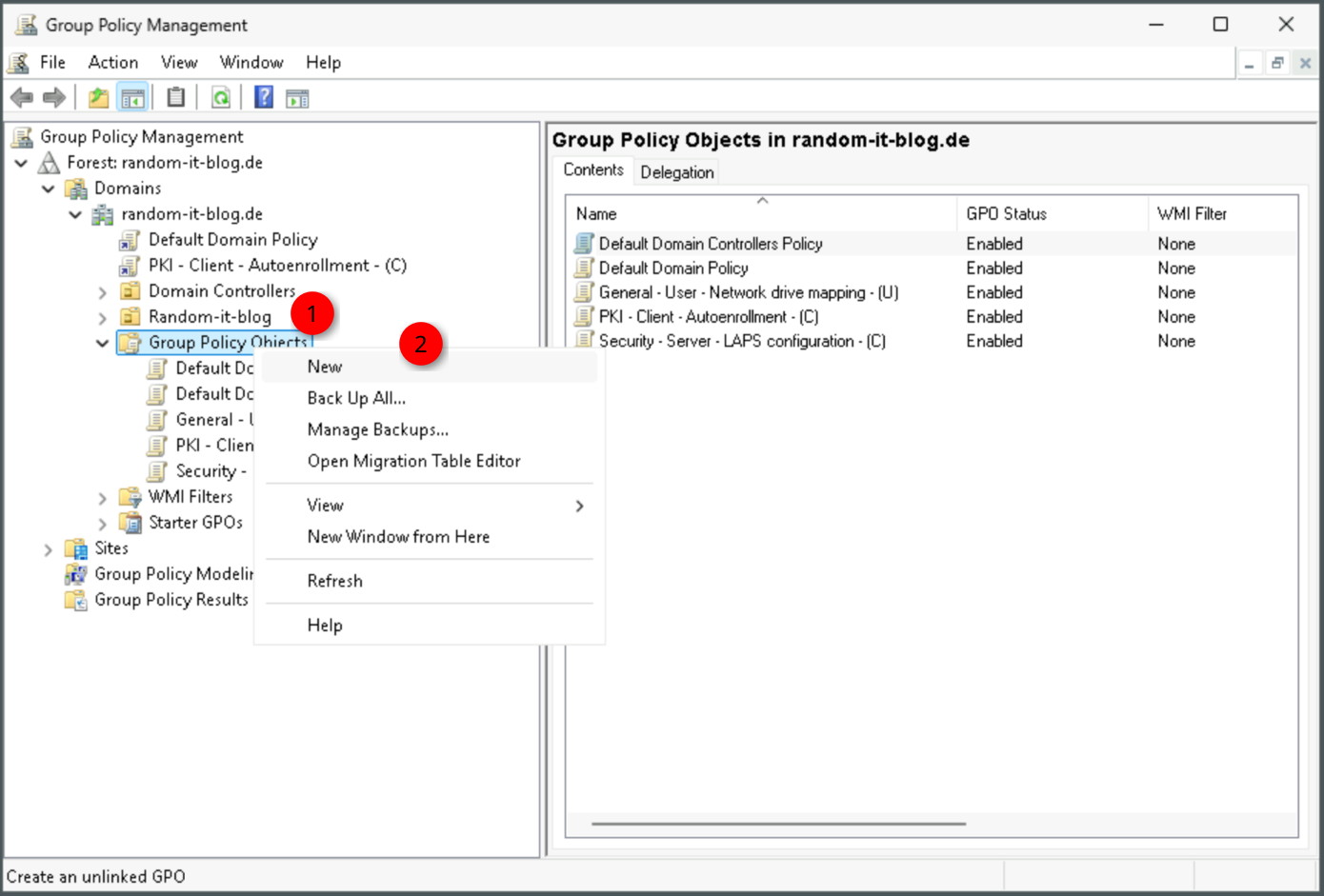
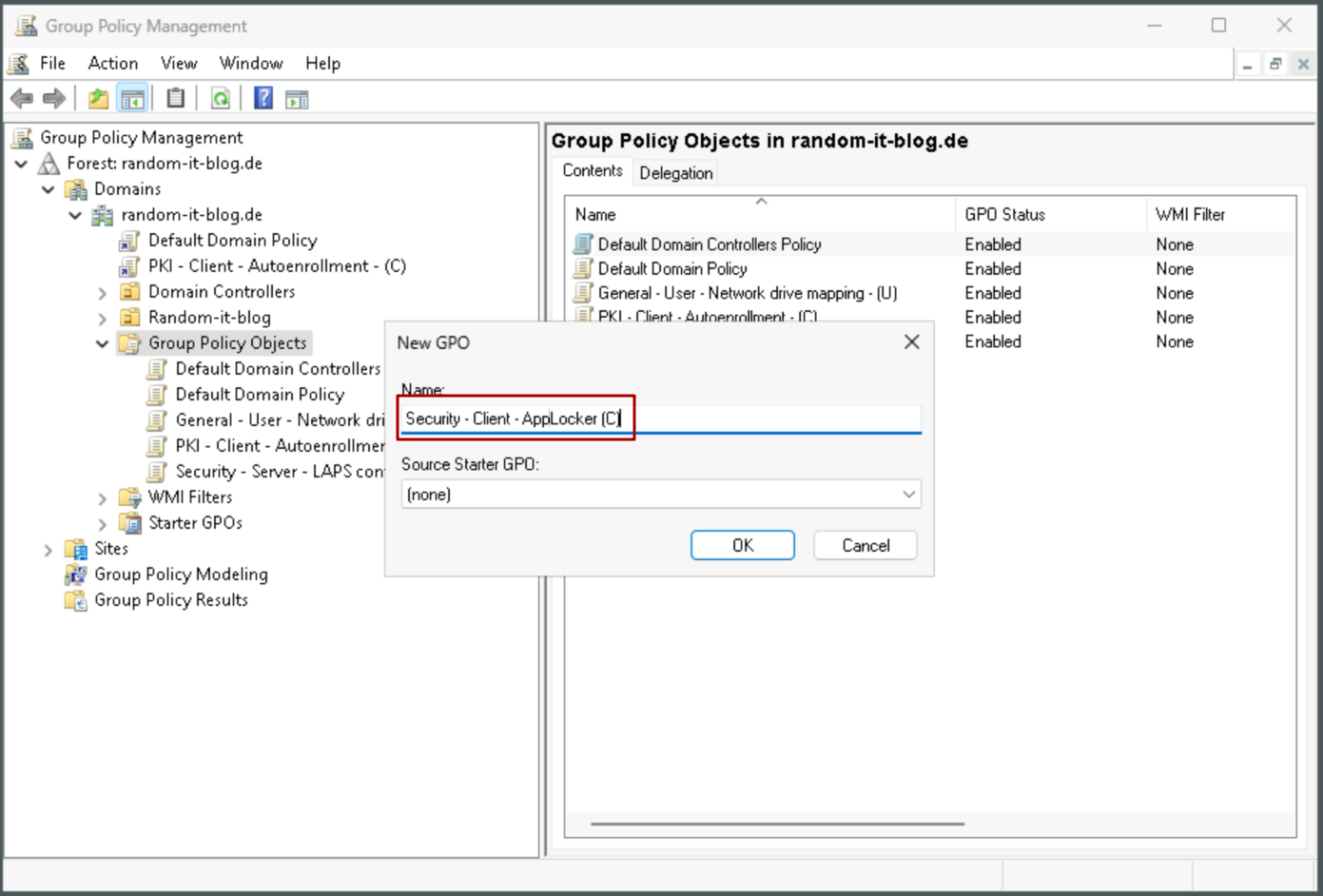
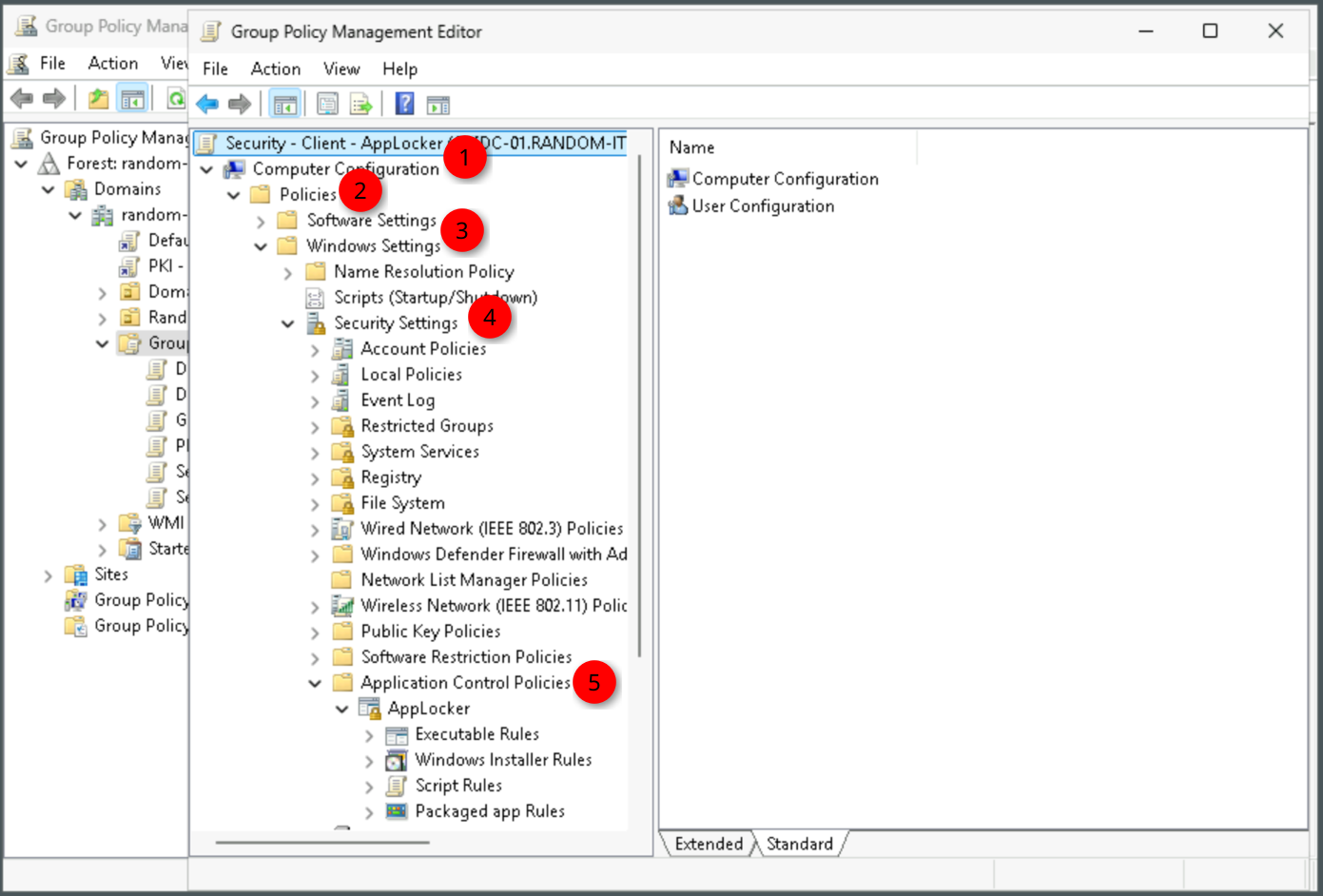
Create a new policy on the Domain Controller, I will name it Security - Client - Applocker - (C) and navigate to Computer Configuration -> Policies -> Windows Settings -> Security Settings -> Application Control Policies -> AppLocker.
Here we have the four options for rules. Executable Rules, Windows Installer Rules, Script Rules and Packaged App Rules. For our use case we only need Executable Rules and Windows Installer Rules, for now.
Here is the use case for each rule type.
- Executable Rules: Blocks or allows standard program files like .exe and .com.
- Windows Installer Rules: Blocks or allows software installation and patch packages like .msi and .msp.
- Script Rules: Blocks or allows text-based automation and command files like .ps1, .bat, and .vbs.
- Packaged App Rules: Blocks or allows modern Universal Windows Platform and Microsoft Store apps like .msix and .appx
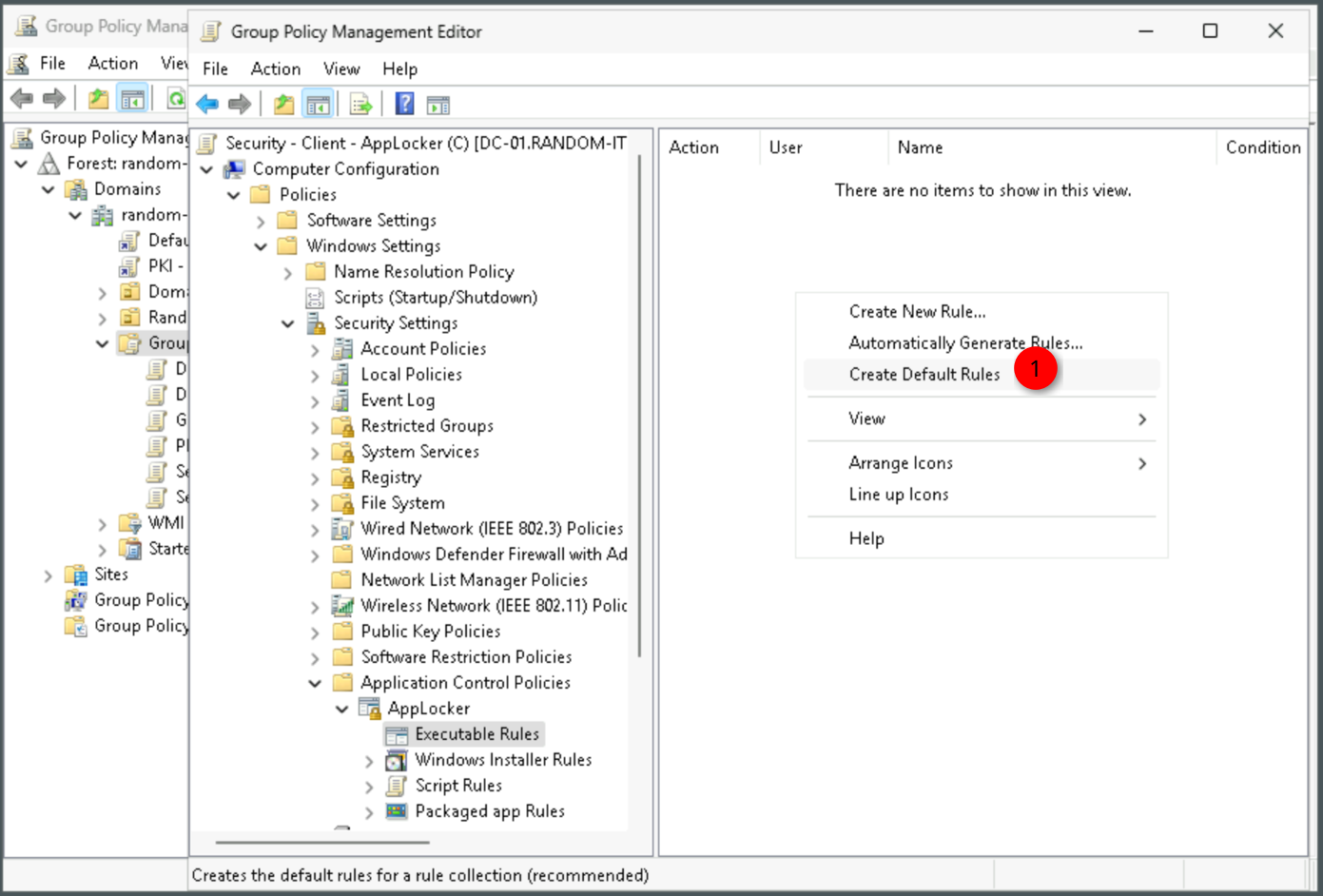
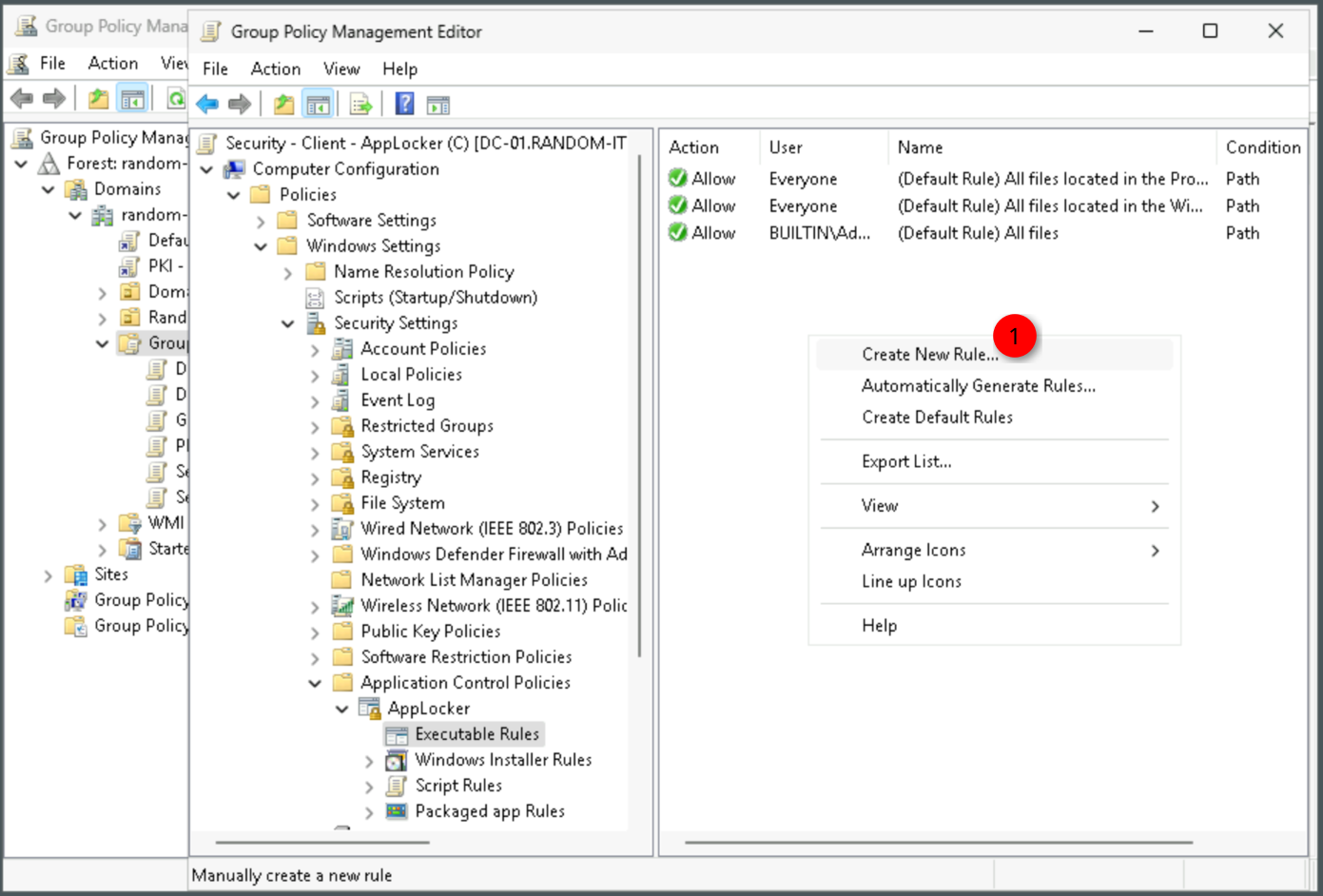
Select Executable Rules, right click inside the empty space and select Create default rules. This ensures that the users can execute windows system files and applications. Otherwise, we would lock ourselves out.
Once those are created, right click again and select create new rule.
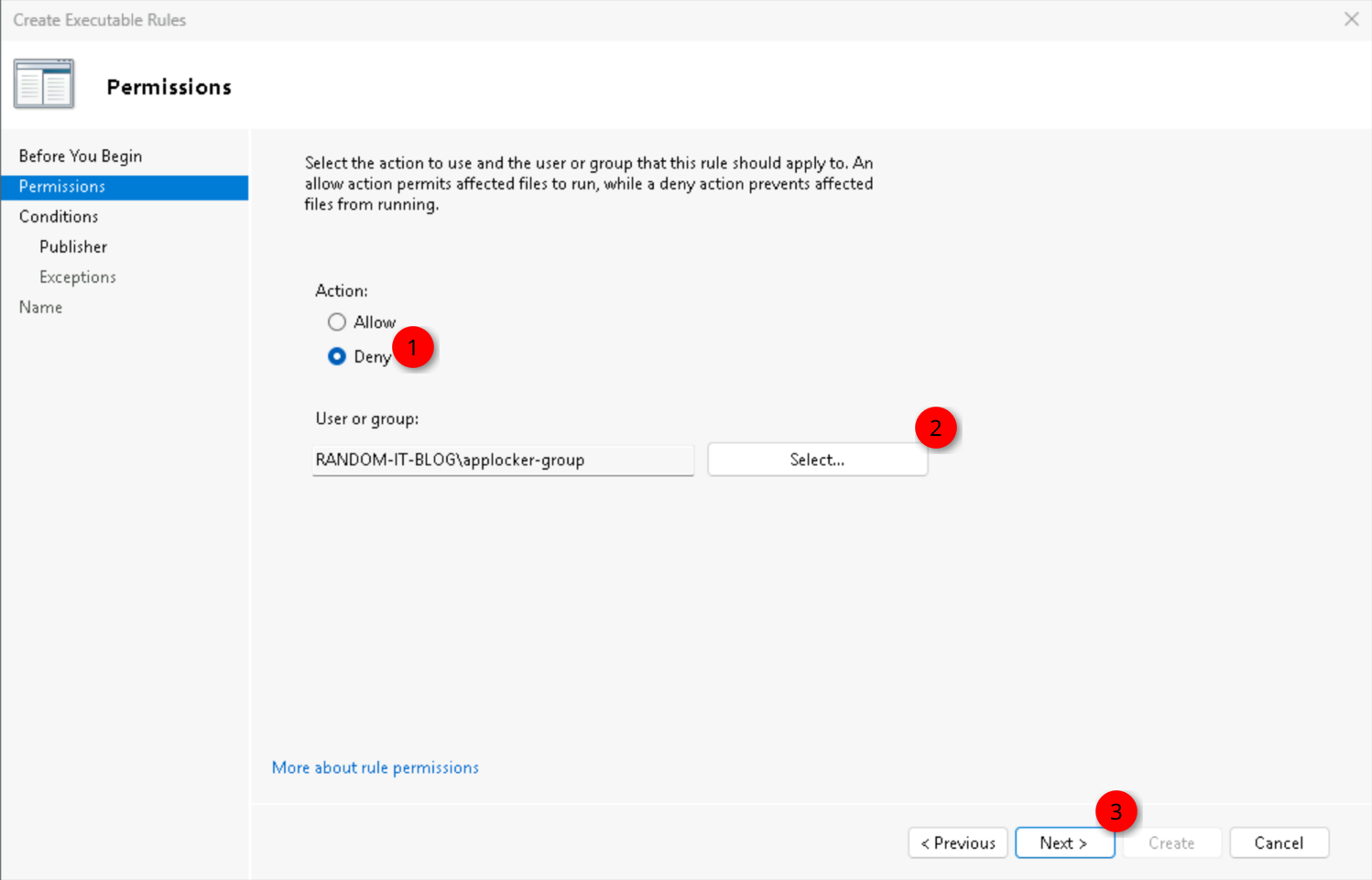
Click “Next” on the first page. Select Deny as the “Action”, select either a user or a group and click on “Next”. Make sure the group does not contain an administrator.
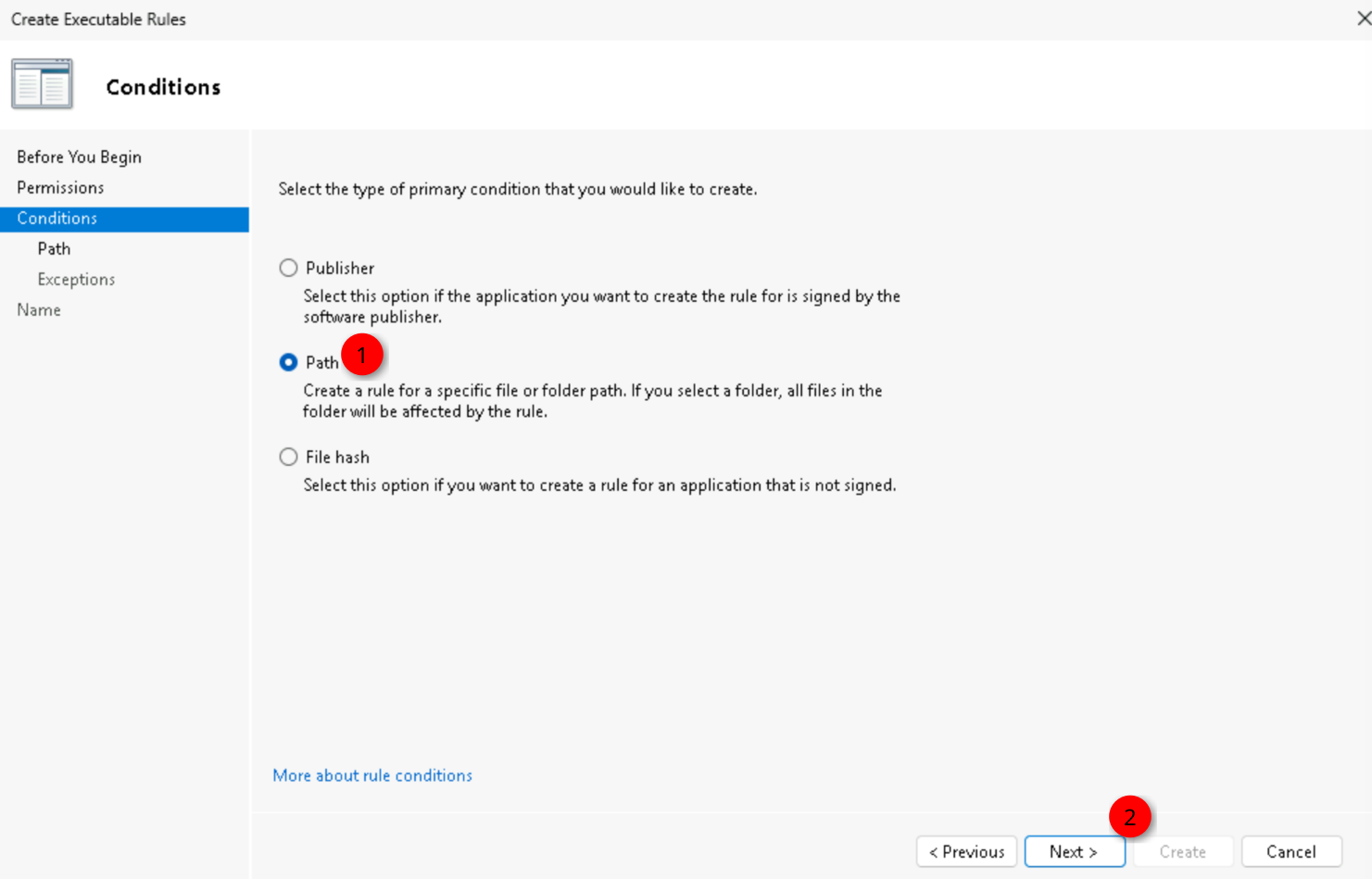
Here we can choose the type of the condition. I will choose Path, but select what fits your requirement and click on “Next”.
For AppData and the other user profile folders, we need to type in the whole path. AppLocker cannot read the user variables like %APPDATA%.
To make sure, that it catches every user, we use wildcards. %OSDRIVE%\Users\*\AppData\* or use C:\Users\*\AppData\*.
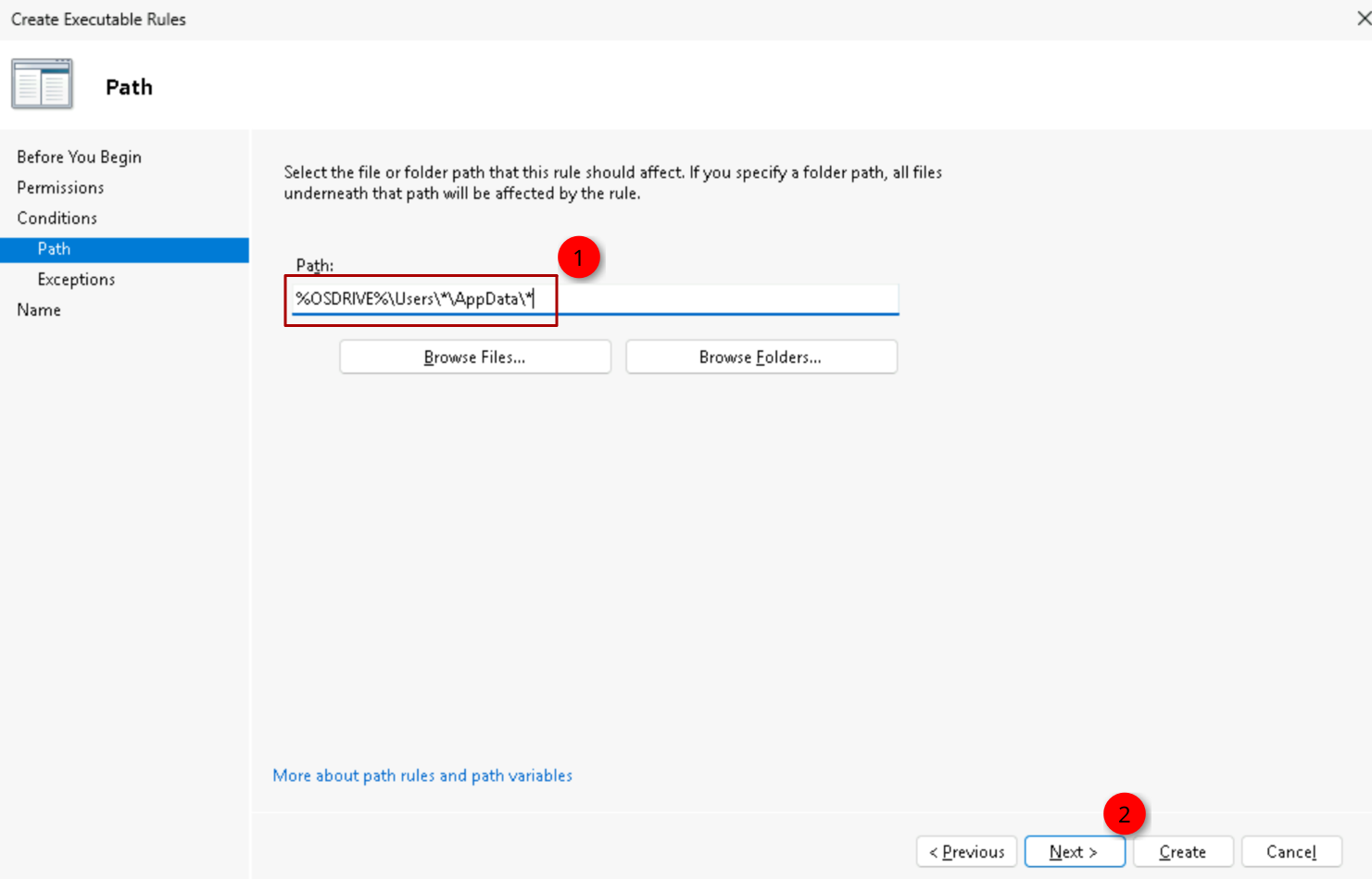
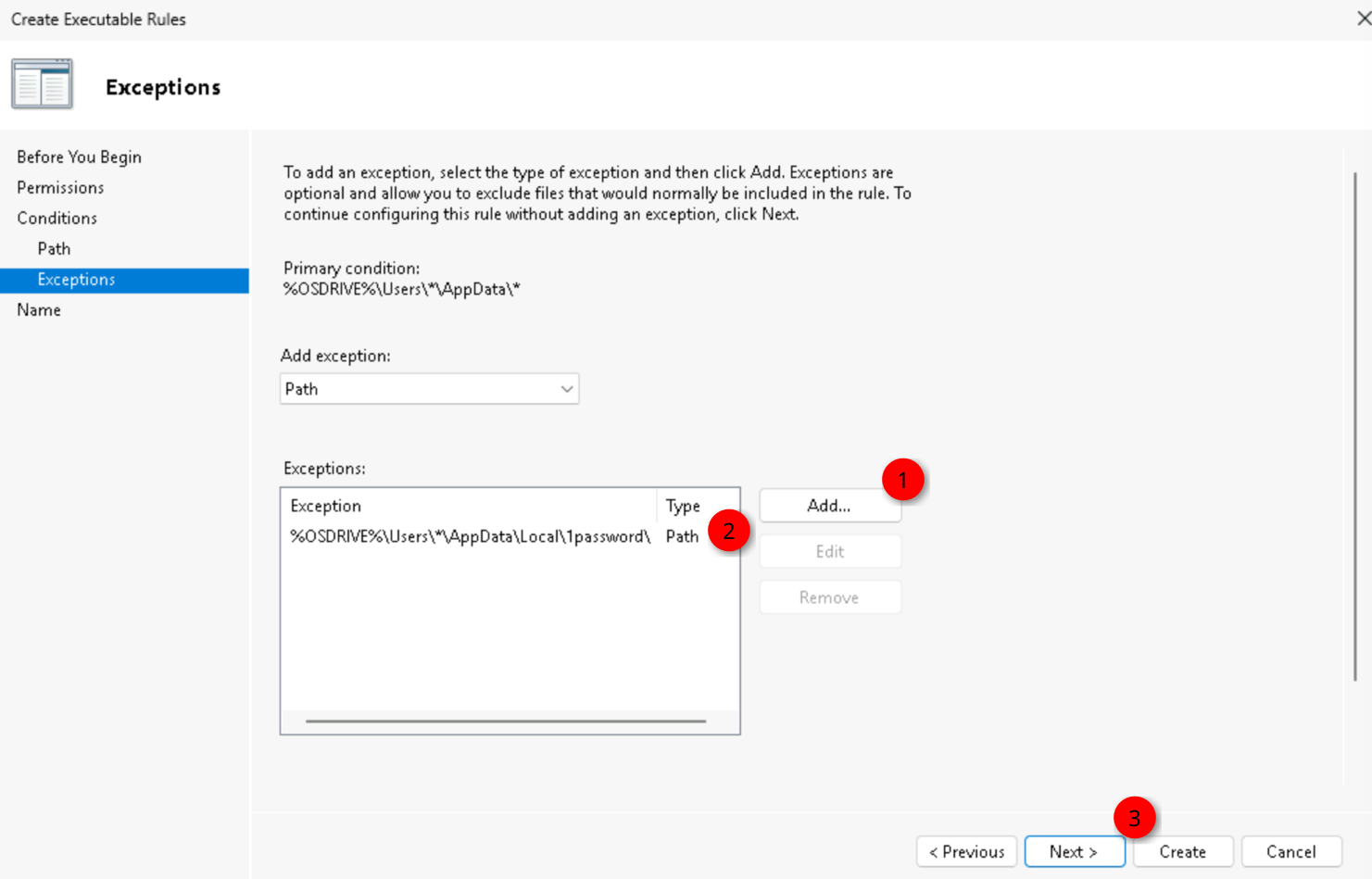
Once done, click “Next”. Here we can define exceptions. Like I mentioned earlier, we use 1Password and that installs into the user profile folder. %OSDRIVE%\Users\*\AppData\Local\1password\.
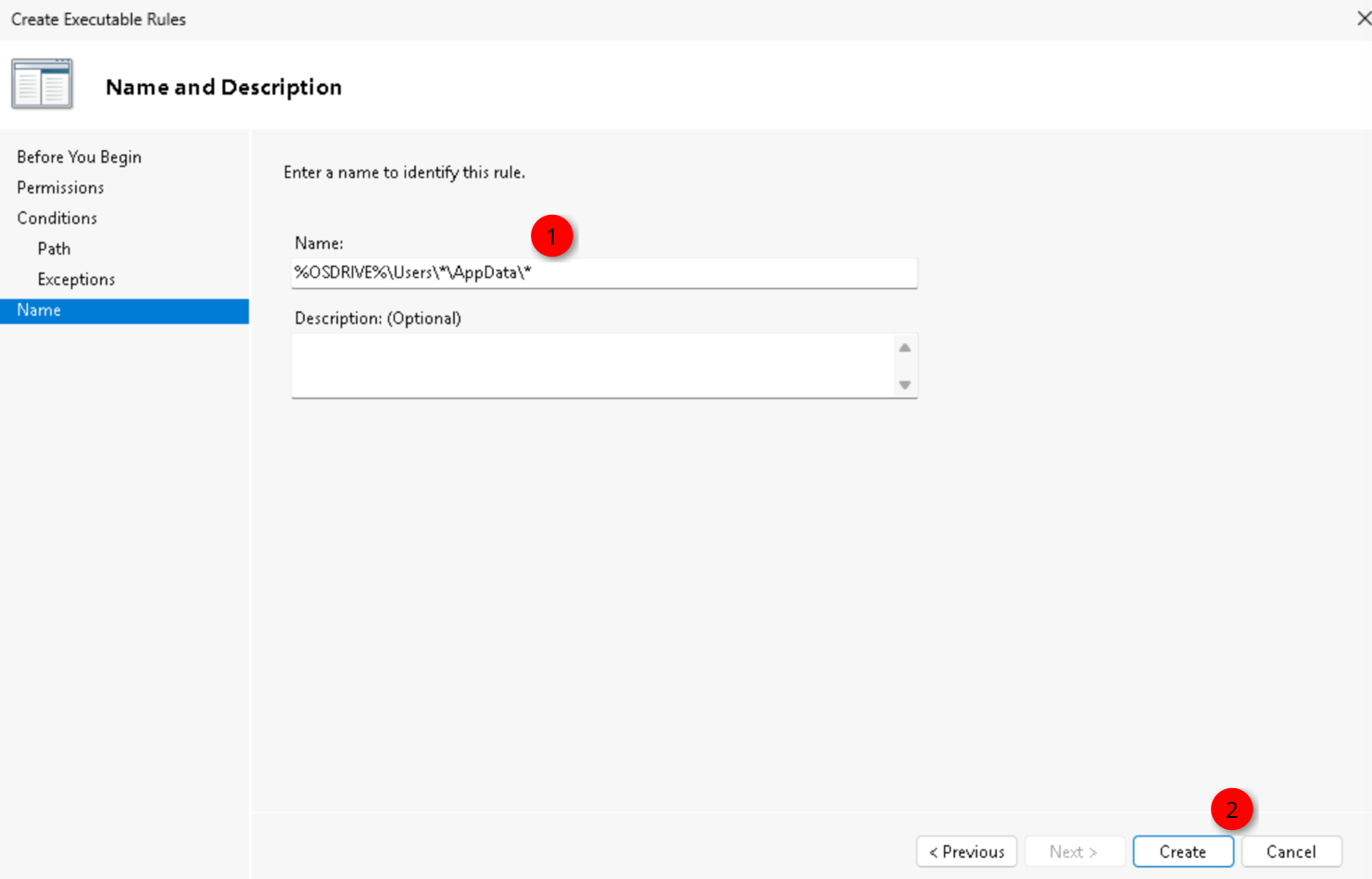
Give it a name, I will leave the default, and click “Create”.
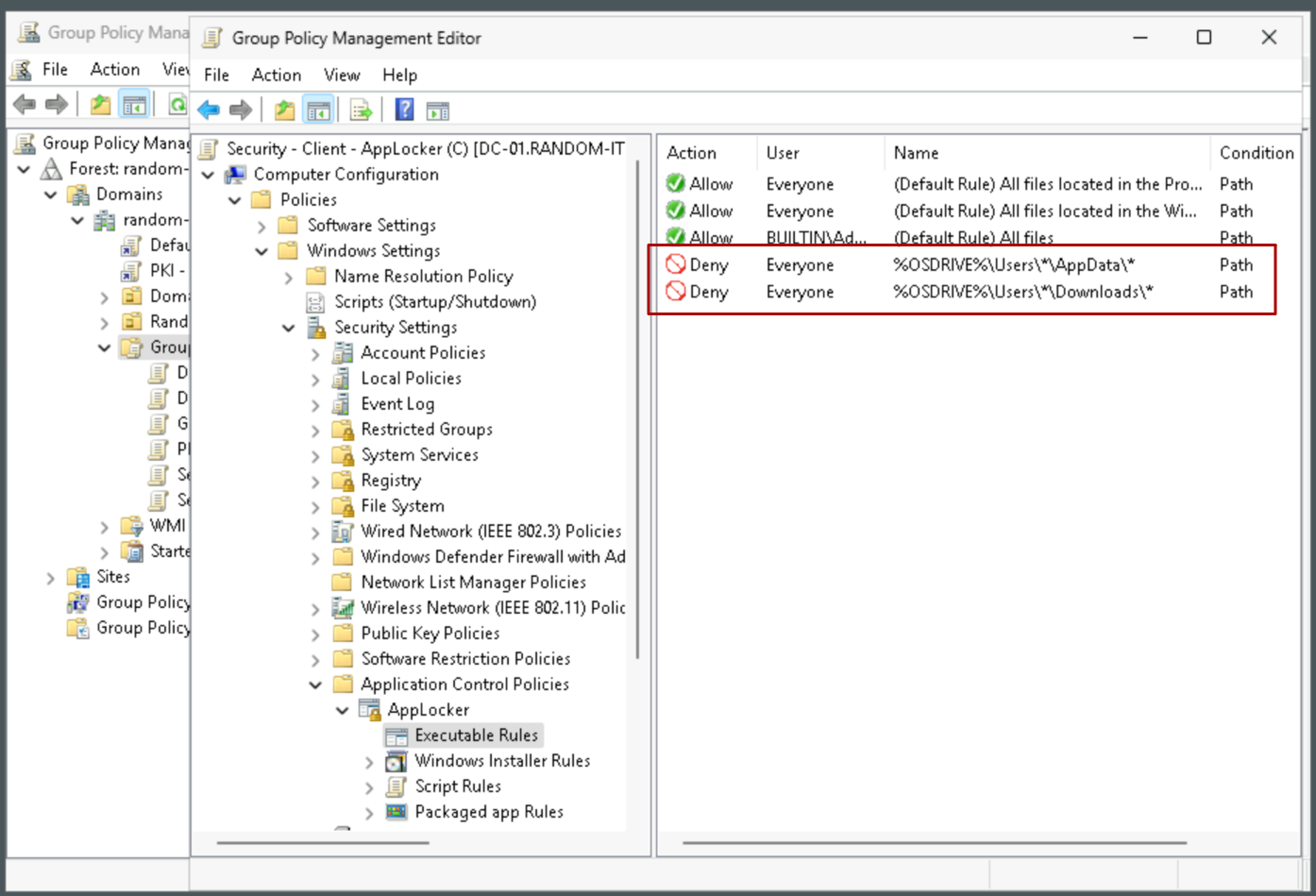
I will do the same for the “Downloads” folder and for the Windows Installer Rules.
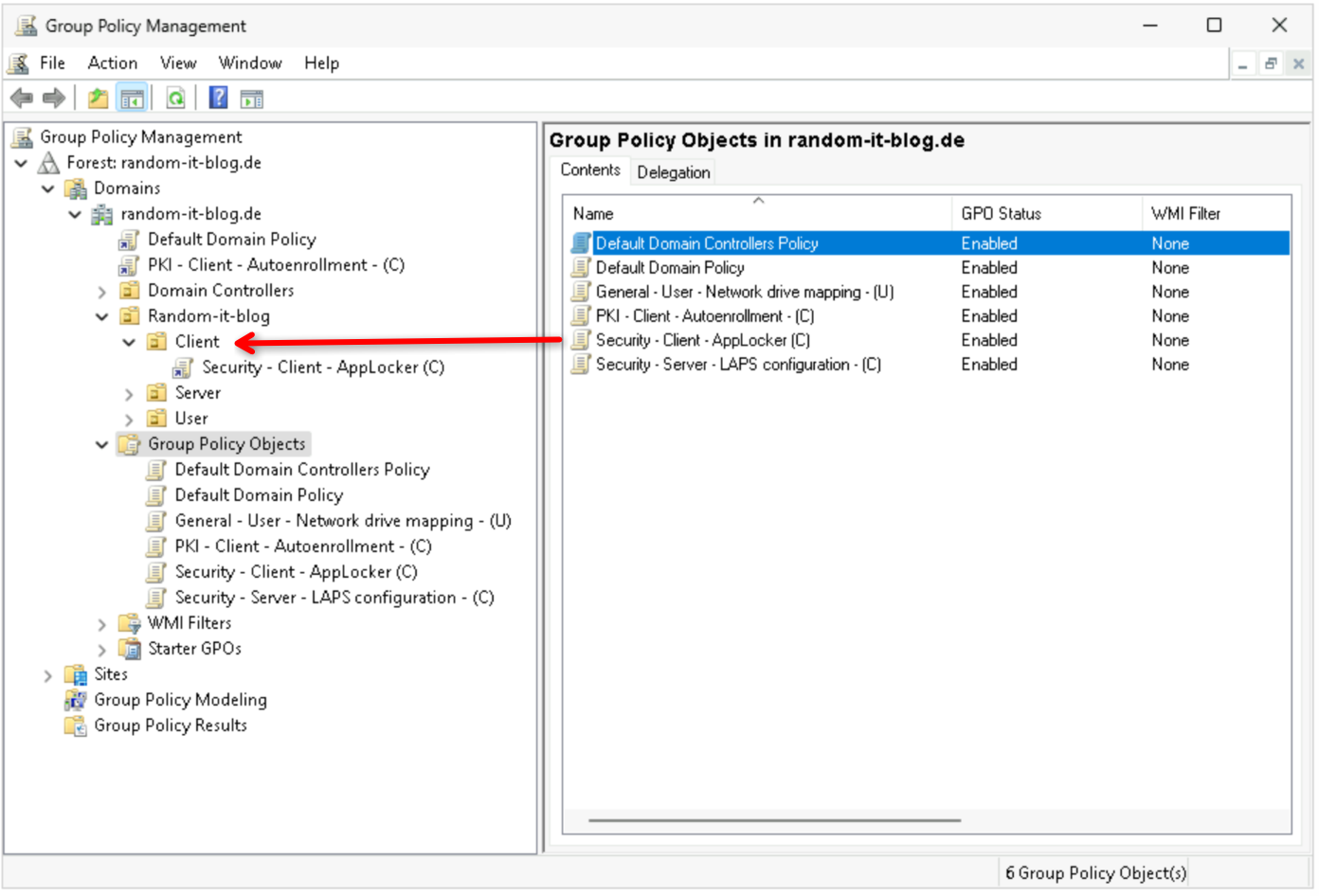
Now, assign the GPO to the OU (organizational unit) the client is in, by either dragging the policy to the OU or right clicking the OU and selecting “Link an Existing GPO…”.
Now we can test it on the client.
Testing the AppLocker GPO on a Client
Enabling the AppLocker service
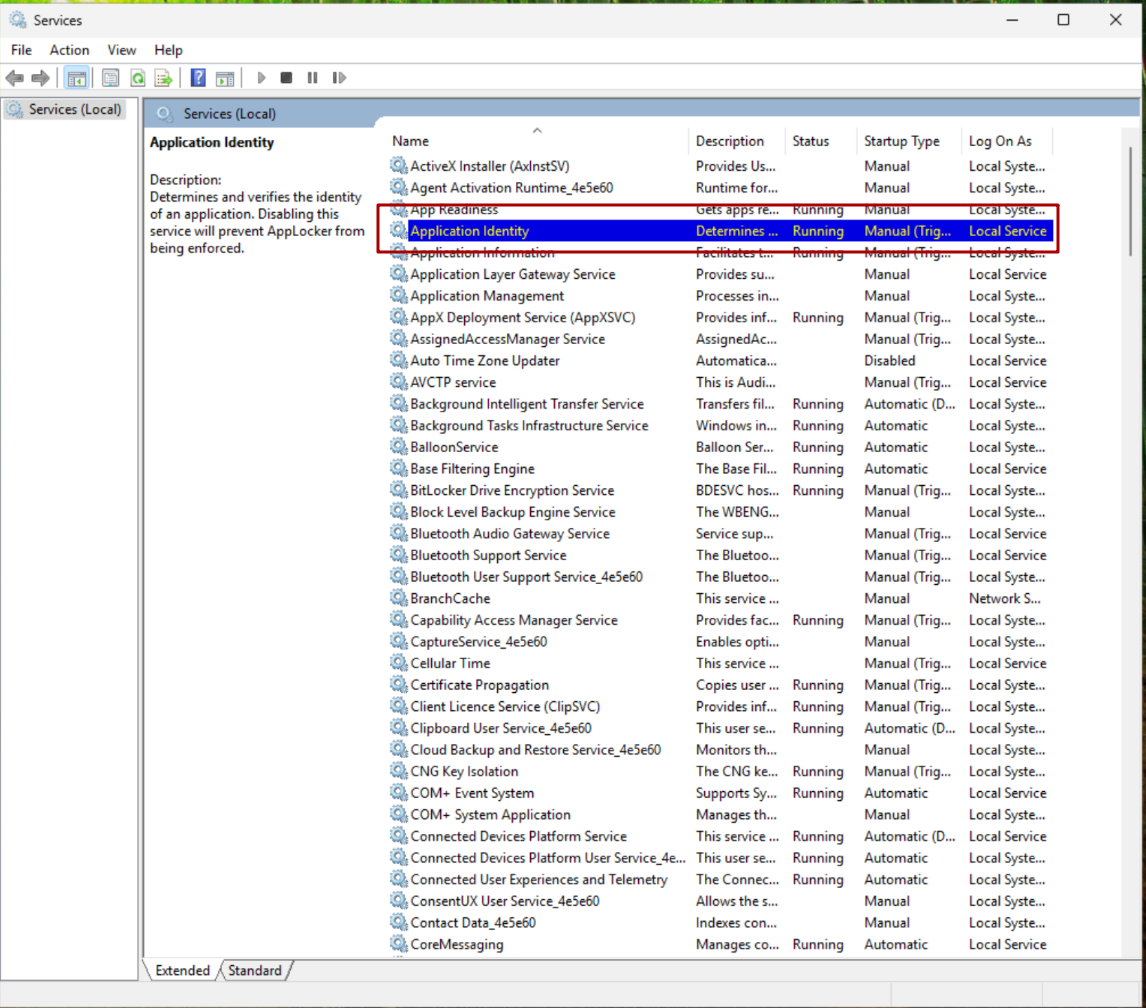
On the client, we need to enable and start the Application Identity service first, before AppLocker actually works. It was running during this test deployment, but at work the service was disabled and stopped. So just check this, to be on the safe side.
Testing AppLocker
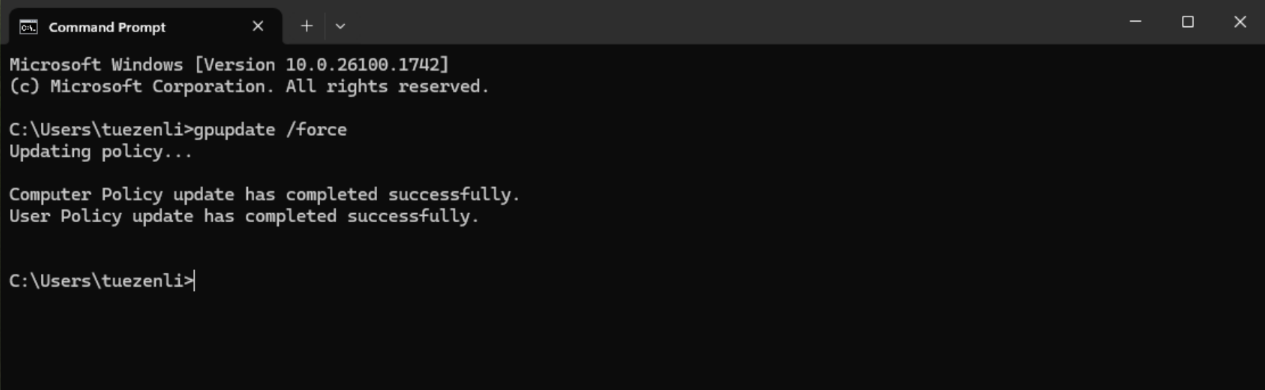
Alright. Next, either restart the client or run gpupdate /force in a terminal.
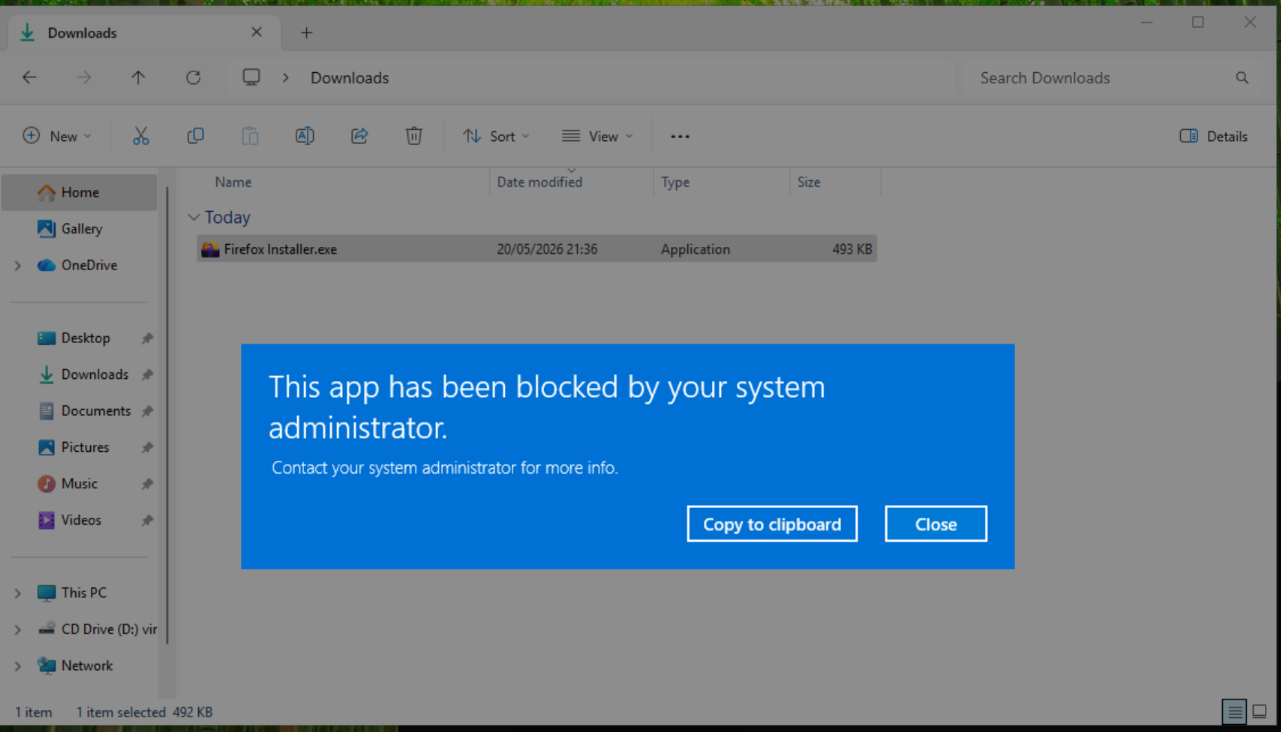
Once that’s done, try to run an executable. I downloaded the Firefox installer to test it.
If everything worked correctly, you should get a popup telling us that the application has been blocked by the administrator.
Now try to “run as administrator”. This should start the installer normally.
That is it.
Comments