Hello everyone,
a couple of days ago, I was trying to find a specific keyword in all the GPOs we have. For this I used a simple PowerShell script that searches through every GPO and outputs the GPO that contains the keyword.
Simple, but it works.
$results = foreach ($gpo in Get-GPO -All) {
    $xml = Get-GPOReport -Guid $gpo.Id -ReportType Xml
    if ($xml -match 'your-keyword') {
        [PSCustomObject]@{
            Name = $gpo.DisplayName
            Id   = $gpo.Id
        }
    }
}
$results
The output looks like this.
Name                         Id
----                         --
TZ_Security_IE_without_Proxy 252f7934-ee58-4824-a6cd-124f241b2c3d
Since I did not want to input this myself every time I want to search for something, I let Claude create a PowerShell script around this.
Here is the script, if you are interested. It works and gives a clean output.
<#
.SYNOPSIS
    Searches all GPOs in the domain for one or more keywords.

.DESCRIPTION
    Pulls the XML report for every GPO via Get-GPOReport and searches it
    for the given keyword(s). Case-insensitive by default. No files are
    written to disk unless -ExportPath is specified.

.PARAMETER Keyword
    One or more keywords/strings to search for. Accepts an array.

.PARAMETER Regex
    If specified, treats the Keyword value(s) as regex patterns instead
    of plain text.

.PARAMETER CaseSensitive
    If specified, performs a case-sensitive match.

.PARAMETER ExportPath
    Optional folder. If provided, also saves each GPO's XML report there
    (useful if you want to keep a local copy or search repeatedly with
    other tools like grep/ripgrep).

.PARAMETER ShowContext
    If specified, prints the matching line(s) from each hit, not just
    the GPO name.

.EXAMPLE
    .\Search-GPOKeyword.ps1 -Keyword "Your-Keyword"

.EXAMPLE
    .\Search-GPOKeyword.ps1 -Keyword "Your-Keyword","VPN","logon.bat" -ShowContext

.EXAMPLE
    .\Search-GPOKeyword.ps1 -Keyword "H:\\.*Your-Keyword" -Regex -ShowContext

.EXAMPLE
    .\Search-GPOKeyword.ps1 -Keyword "Your-Keyword" -ExportPath "C:\GPOReports"
#>

[CmdletBinding()]
param(
    [Parameter(Mandatory = $true)]
    [string[]]$Keyword,

    [switch]$Regex,

    [switch]$CaseSensitive,

    [string]$ExportPath,

    [switch]$ShowContext
)

Import-Module GroupPolicy -ErrorAction Stop

if ($ExportPath -and -not (Test-Path $ExportPath)) {
    New-Item -ItemType Directory -Path $ExportPath -Force | Out-Null
}

# Build the patterns. If -Regex wasn't specified, escape the keywords so
# they're treated as literal text rather than regex syntax.
$patterns = foreach ($k in $Keyword) {
    if ($Regex) { $k } else { [regex]::Escape($k) }
}

$allGpos = Get-GPO -All
Write-Host "Searching $($allGpos.Count) GPOs for: $($Keyword -join ', ')" -ForegroundColor Cyan
if ($CaseSensitive) { Write-Host "(case-sensitive)" -ForegroundColor DarkGray }

$results = New-Object System.Collections.Generic.List[Object]
$counter = 0

foreach ($gpo in $allGpos) {
    $counter++
    Write-Progress -Activity "Scanning GPOs" -Status $gpo.DisplayName `
        -PercentComplete (($counter / $allGpos.Count) * 100)

    try {
        $xml = Get-GPOReport -Guid $gpo.Id -ReportType Xml
    }
    catch {
        Write-Warning "Failed to get report for '$($gpo.DisplayName)': $_"
        continue
    }

    if ($ExportPath) {
        $safeName = $gpo.DisplayName -replace '[\\/:*?"<>|]', '_'
        $xml | Out-File -FilePath (Join-Path $ExportPath "$safeName.xml") -Encoding utf8
    }

    foreach ($pattern in $patterns) {
        $regexOptions = if ($CaseSensitive) {
            [System.Text.RegularExpressions.RegexOptions]::None
        } else {
            [System.Text.RegularExpressions.RegexOptions]::IgnoreCase
        }

        $hits = [regex]::Matches($xml, $pattern, $regexOptions)

        if ($hits.Count -gt 0) {
            $matchedLines = @()
            if ($ShowContext) {
                $lines = $xml -split "`r?`n"
                $lineRegex = New-Object System.Text.RegularExpressions.Regex($pattern, $regexOptions)
                $matchedLines = $lines | Where-Object { $lineRegex.IsMatch($_) } | ForEach-Object { $_.Trim() }
            }

            $results.Add([PSCustomObject]@{
                GPOName    = $gpo.DisplayName
                GPOId      = $gpo.Id
                Pattern    = $pattern
                HitCount   = $hits.Count
                MatchLines = ($matchedLines -join " | ")
            })
        }
    }
}

Write-Progress -Activity "Scanning GPOs" -Completed

if ($results.Count -eq 0) {
    Write-Host "No matches found." -ForegroundColor Yellow
    return
}

Write-Host "`nFound $($results.Count) matching GPO/pattern combination(s):" -ForegroundColor Green

if ($ShowContext) {
    $results | Format-Table GPOName, Pattern, HitCount, MatchLines -Wrap -AutoSize
} else {
    $results | Format-Table GPOName, GPOId, Pattern, HitCount -AutoSize
}

# Also return the objects to the pipeline so you can pipe into
# Export-Csv, Out-GridView, etc.
$results
But there’s an issue when running a new script. Depending on the execution policy set on your machine, PowerShell either blocks all unsigned scripts, or refuses to run only those unsigned scripts that carry the Zone.Identifier stream marking them as downloaded from the Internet zone.
To check if a file has that stream, use the following command.
# Check the Zone
Get-Item .\filename.ps1 -Stream Zone.Identifier -ErrorAction SilentlyContinue
PSPath        : Microsoft.PowerShell.Core\FileSystem::C:\path\filename.ps1:Zone.Identifier
PSParentPath  : Microsoft.PowerShell.Core\FileSystem::C:\path
PSChildName   : filename.ps1:Zone.Identifier
PSDrive       : C
PSProvider    : Microsoft.PowerShell.Core\FileSystem
FileName      : C:\path\filename.ps1
Stream        : Zone.Identifier
Length        : 26

Get-Content .\filename.ps1 -Stream Zone.Identifier
[ZoneTransfer]
ZoneId=3
We have AllSigned on our workstations, so every script has to be signed.
Bypass or Disable Script Signing Verification (Not Recommended)
One way would be to change the execution policy away from AllSigned in PowerShell, but I didn’t want that.
Here are the PowerShell commands to change or bypass that setting. (This only works, if you did not enforce those using GPOs)
Bypass for this PowerShell session only
Set-ExecutionPolicy -ExecutionPolicy Bypass -Scope Process
Bypass for a single script
powershell.exe -ExecutionPolicy Bypass -File .\filename.ps1
Change the setting for the user scope (persistent)
Set-ExecutionPolicy -ExecutionPolicy Bypass -Scope CurrentUser
Remove the zone from the file
Another option would be to remove the Zone.Identifier stream from the file. This wouldn’t help in my case (since AllSigned doesn’t check zone at all), but if you have RemoteSigned set, it would work, since there’s no zone marker on the file anymore for it to check.
Remove zone using unblock-file
Unblock-File -Path .\filename.ps1
So, what’s the alternative? Signing the scripts ourselves.
Signing the Script with an Internal PKI
Create certificate template
We have a self-hosted PKI running at work, so I will use this. But you could also just use a locally generated self-signed certificate. Just keep in mind that other machines will only show a self-signed certificate’s signature as valid if that certificate is imported into their Trusted Root Certification Authorities (or Trusted Publishers) store. That’s not an issue for us since our PKI’s root is already trusted domain-wide via GPO.
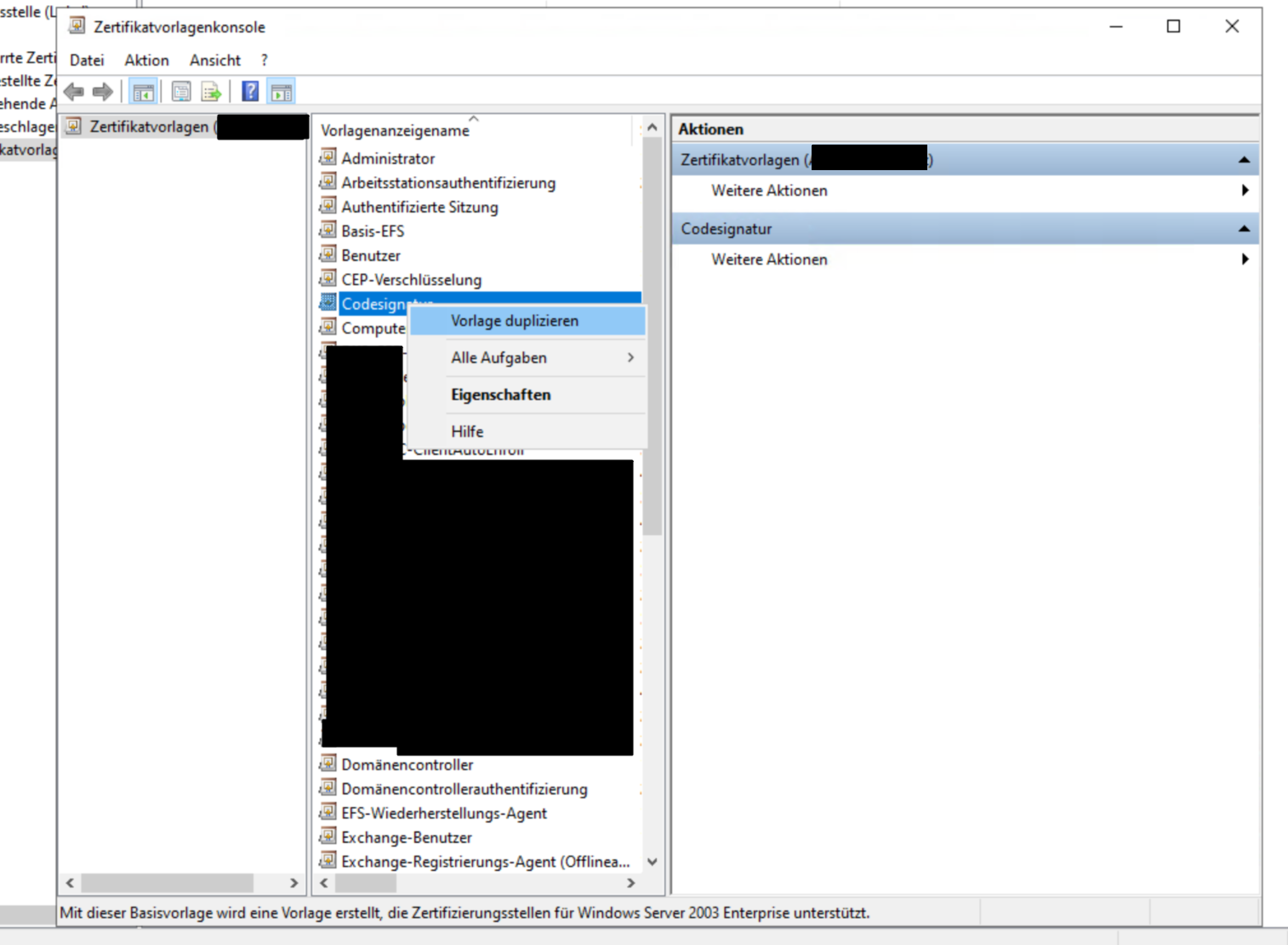
Let’s begin by duplicating the Code Signing template.
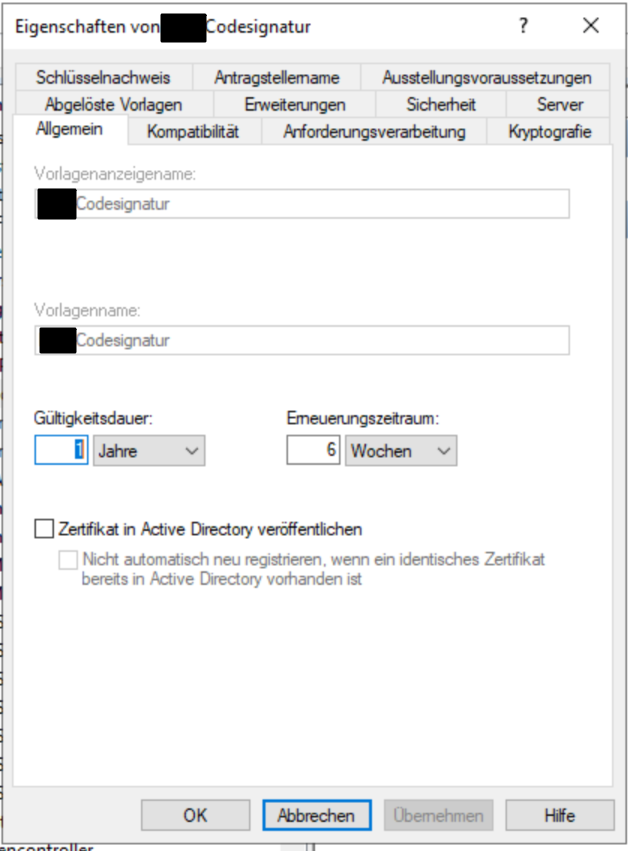
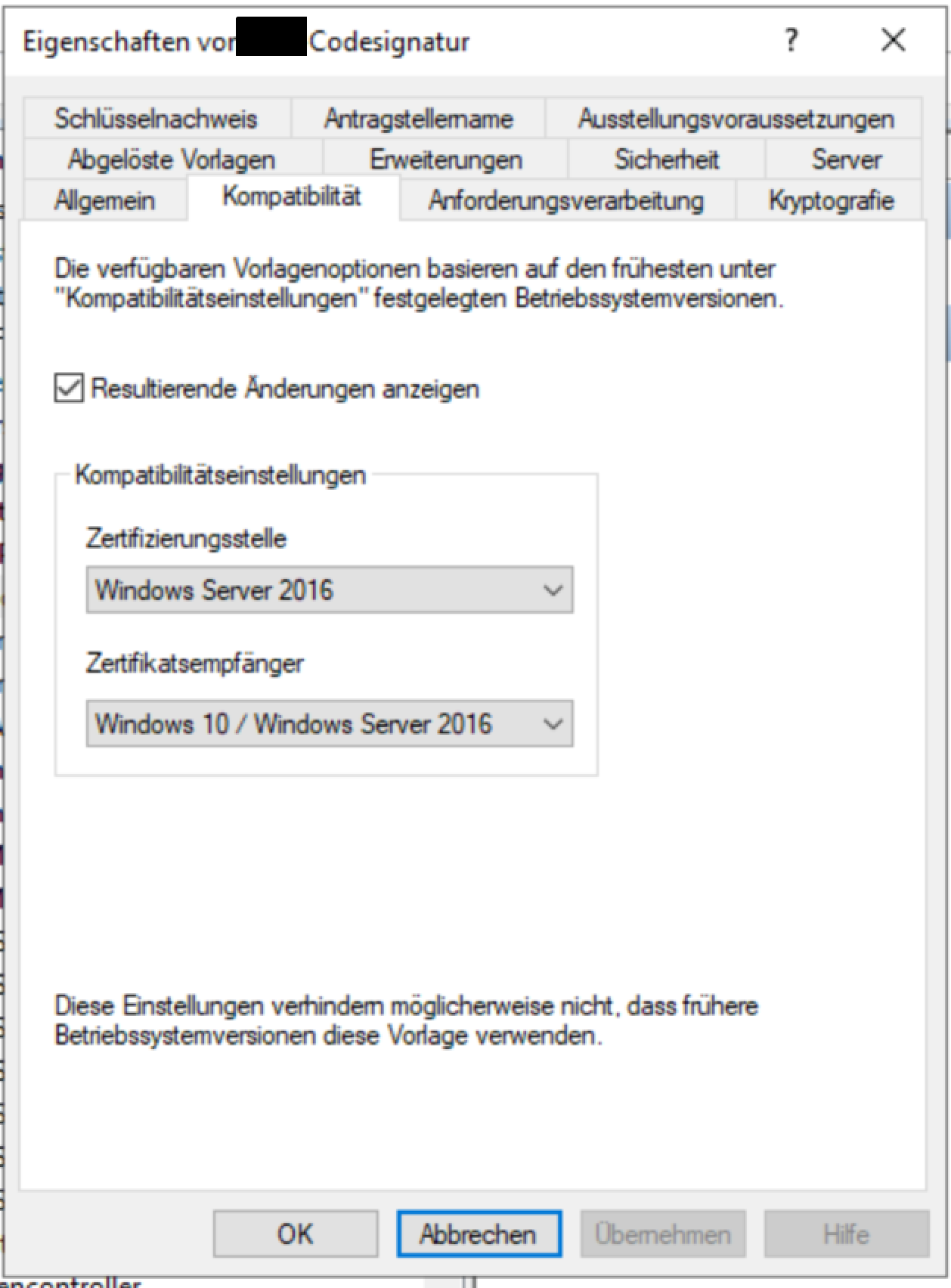
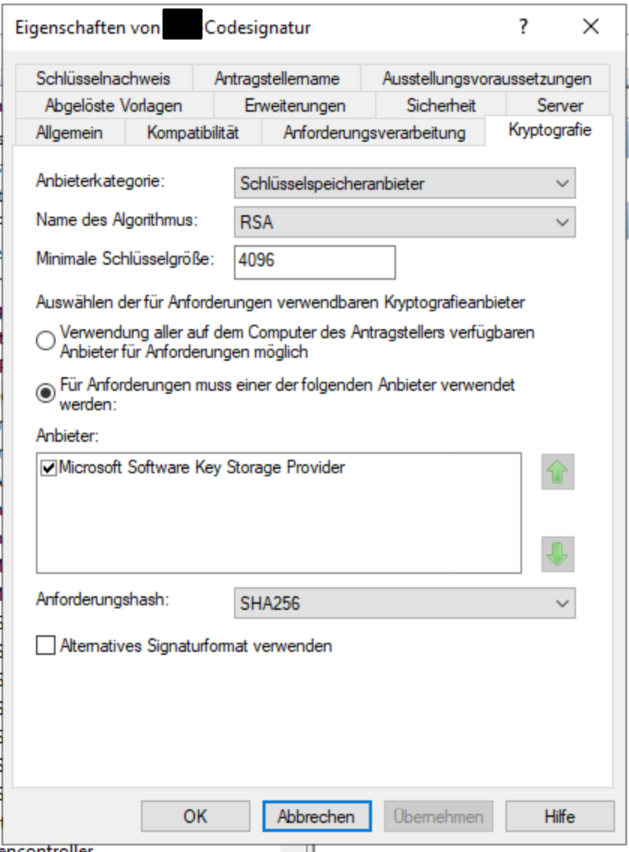
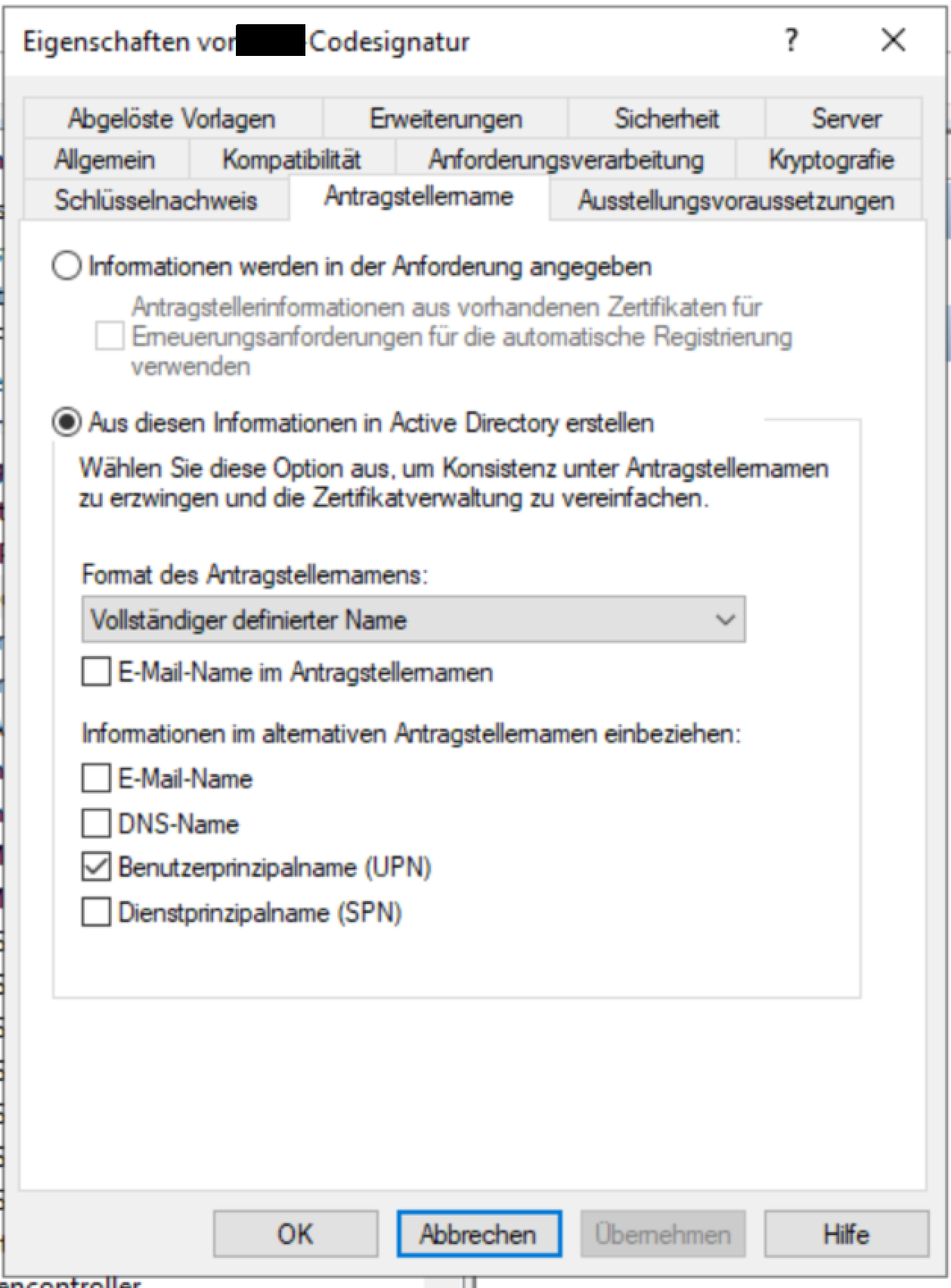
In the new template I set the following options.
Generate a certificate
Now that we have our code signing template, we can generate a certificate for our user.
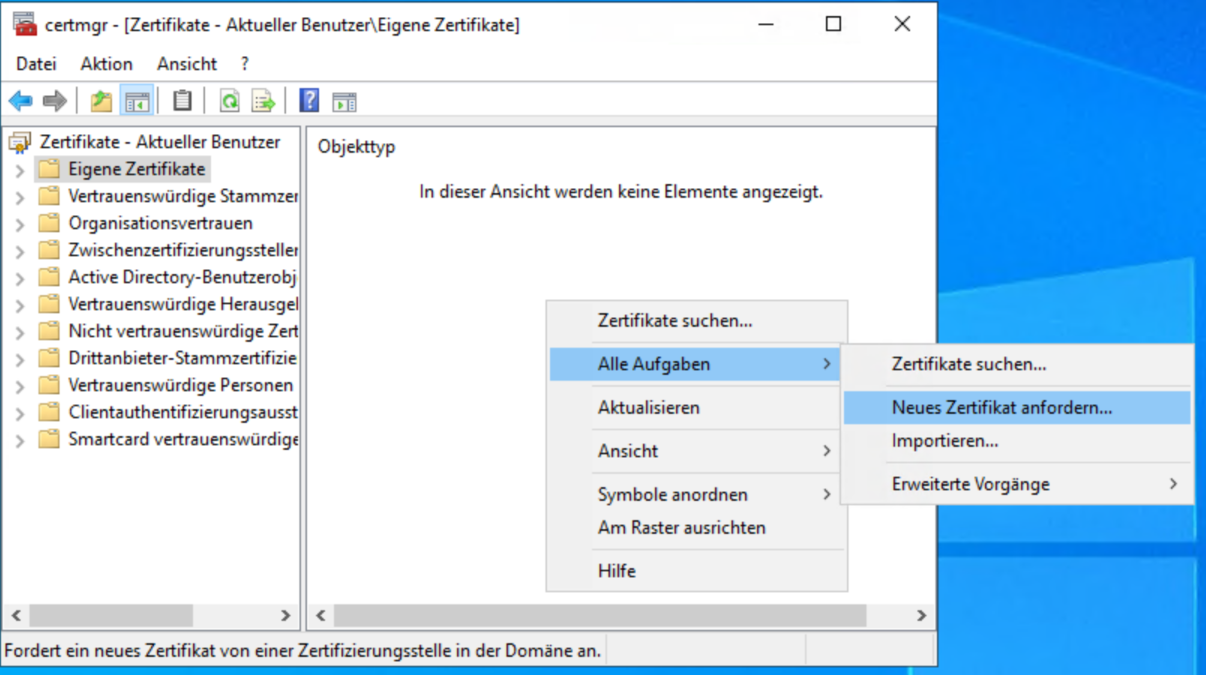
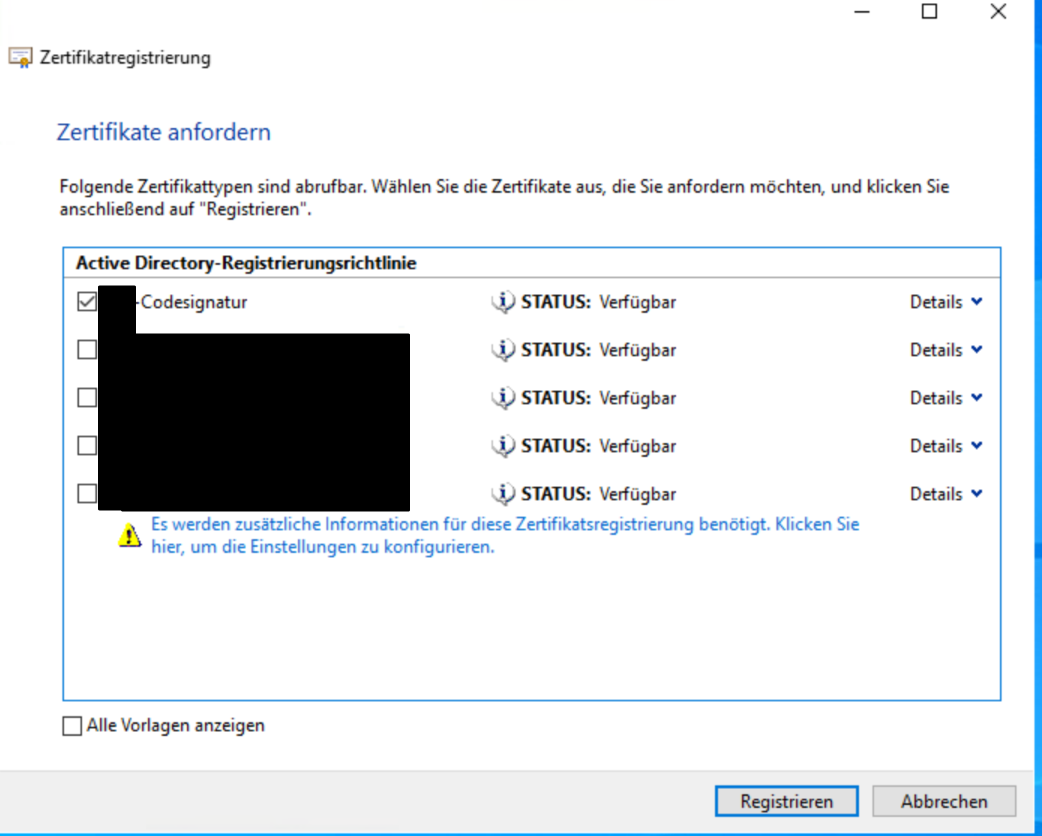
Alright. Export the certificate (or if it’s the workstation you want to sign your code, just leave it) and save it in a safe location where you have access from your workstation.
Now we can start signing our scripts.
Code Signing
I have a script that searches the GPOs for a specific keyword. In case we set some registry entry or desktop icon manually, I can search for it with one command, rather than searching each and every policy.
Anyway. Let’s say we want to sign this specific PowerShell script.
Navigate to the script folder.
When using the certificate store
# Use if you have a single signing certificate
$cert = Get-ChildItem Cert:\CurrentUser\My -CodeSigningCert

# Use if you have multiple signing certificates
$cert = Get-ChildItem Cert:\CurrentUser\My -CodeSigningCert | Select-Object -First 1

# Sign the Script
## `-TimestampServer` keeps the signature valid after the certificate expires. It also sends a request to DigiCert, so it will fail on isolated networks. Drop it there and re-sign after renewal.
Set-AuthenticodeSignature -FilePath ".\Search-GPOKeyword.ps1" -Certificate $cert -HashAlgorithm SHA256 -TimestampServer "http://timestamp.digicert.com"

# Verify
Get-AuthenticodeSignature -FilePath ".\Search-GPOKeyword.ps1"
SignerCertificate                         Status                    StatusMessage             Path
-----------------                         ------                    -------------             ----
1221EF7FC95A154B3A57C3866F0D7EF50A0900B87  Valid                     Signatur überprüft.       Search-GPOKeyword.ps1

# Verify extended
Get-AuthenticodeSignature -FilePath ".\Search-GPOKeyword.ps1" | fl
If it’s not signed, the message will look like this.
SignerCertificate                         Status                    StatusMessage             Path
-----------------                         ------                    -------------             ----
                                          NotSigned                 Die Datei „C:\Users\tuez… Search-GPOKeyword-no-sig…
When using a certificate file
# store the pfx password
$password = Read-Host -AsSecureString "Enter your Password: "

# store the certificate
# Note: -Password requires PowerShell 6+ (pwsh). In Windows PowerShell 5.1,
# Get-PfxCertificate has no -Password parameter — omit it there and it
# will prompt you interactively instead.
$cert = Get-PfxCertificate -FilePath "C:\path\to\Codesignatur.pfx" -Password $password

# Sign the script
Set-AuthenticodeSignature -FilePath ".\Search-GPOKeyword.ps1" -Certificate $cert -HashAlgorithm SHA256 -TimestampServer "http://timestamp.digicert.com"
That is pretty much it.
I hope this helps. It was definitely easier to sign a script than I thought.
Till next time.
Comments