Hi everyone,
I’ve been working at a mid-sized hospital for about a year now, and even though I mainly take care of the infrastructure and security side, every now and again, I need to change I-SIDs or VLANs on some of our switches.
We currently have a little more than 100 switches, and all of them are from Extreme Networks. Fabric Connect is not really implemented yet, but hopefully, it will be within the next couple of years. But that’s not the actual point of this post, since I am not going to implement it. I want to understand the switches a bit more. Unfortunately, I find the amount of information concerning the Fabric Connect configuration a bit lacking. So, that’s why I decided to gather as much as possible and try it out myself.
The cool thing about Fabric Connect is that it (technically) simplifies the switch configuration tremendously. Once everything is set up, we have something similar to a Layer 3 based network and only have to configure the edge ports. There is no need to configure every single uplink port for a new VLAN. Just create the VLAN at the edge switches and ports you want and the Fabric will take care of the rest.
It’s similar to VXLAN, which basically everyone else uses, but this setup seems way simpler.
To make sure that I don’t break anything in our productive environment, I will be setting this up in GNS3 and using the Extreme Networks Virtual VOSS VM. What we have to keep in mind is that the VMs do not actually have the data plane implemented. So we won’t have any traffic when using Fabric Connect. This means we cannot fully test the setup. But ISIS and a few other things work fine. This should give me enough to verify the configuration. Hopefully.
This will be as much a learning experience for me as it might hopefully help you, or at least be interesting.
For this, I will assume that you have GNS3 running. You can get the VOSS image from this GitHub link. I will be using “VOSS 9.3.0” for this.
This will be the topology.
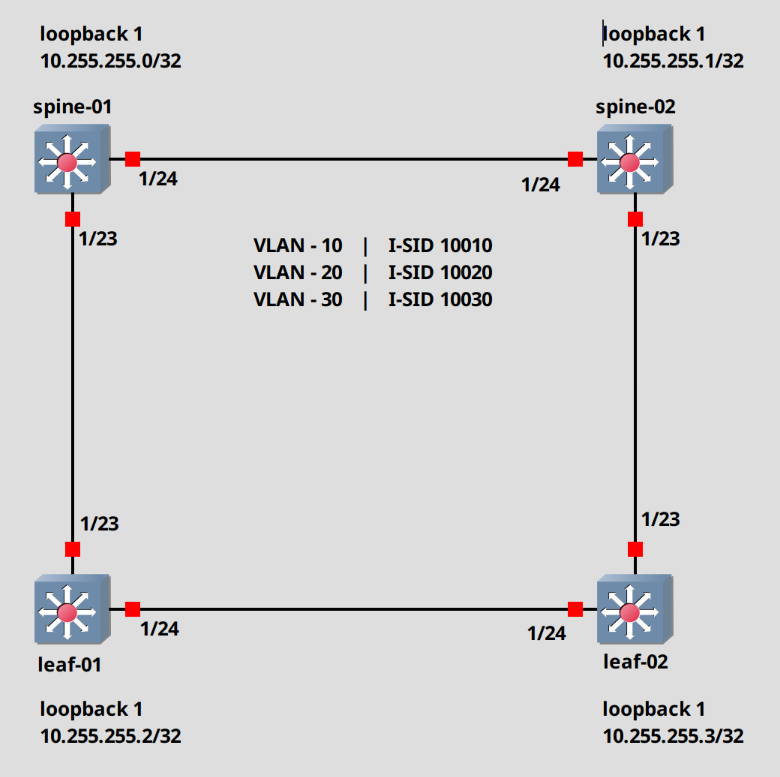
Let’s begin.
Switch configuration cleanup (Optional)
First we will start with a cleanup. These switches boot with a preconfigured SPBM/ISIS configuration, which means that technically we don’t have to do anything at all. It works out of the box. But I want to modify the defaults and set this up myself.
We will do these steps on every switch.
To Login, use rwa / rwa for the username and password. We have to change the password after the first login.
Login: rwa
Password: ***
Enter the New password : ********
Re-enter the New password : ********

Password changed successfully
5520-24T-FabricEngine:1>
To get into the configuration mode, we have to first enter the commands “enable” then “configure terminal”. Keep in mind that you can shorten every command, as long as it’s unique. For example, you can just type “ena” and hit enter. It will still work.
# Switch into privilege mode
5520-24T-FabricEngine:1> enable
# Switch into configuration mode
5520-24T-FabricEngine:1# configure terminal
5520-24T-FabricEngine:1(config)#
The first step, will be to disable screen logging. It gets annoying very fast.
# Disable logging display in the terminal
5520-24T-FabricEngine:1(config)# no logging screen
Next, we set the prompt name.
# Change prompt
5520-24T-FabricEngine:1(config)# prompt spine-01
spine-01(config)#
Alright. Let’s actually start configuring.
We will remove the spbm and ISIS configuration.
# Remove the preconfigured SPBM/ISIS configuration
spine-01(config)# mgmt vlan
spine-01(config)# no enable
spine-01(config)# mgmt oob
spine-01(config)# no enable
spine-01(config)# exit
spine-01(config)# no auto-sense onboarding i-sid
spine-01(config)# no router isis enable
spine-01(config)# no spbm
spine-01(config)# no i-sid name 15999999
spine-01(config)# no vlan i-sid 4048
spine-01(config)# vlan delete 4048
SPBM configuration (Script)
Ok, now we can create our SPBM configuration. In this part, we will create this using the script provided by the switch.
Everything in red was changed by me.
spine-01(config)# run spbm

**********************************************************
*** This script will guide you through configuring the ***
*** Extreme Networks switch for optimal operation of SPB.         ***
*** Extreme Networks switch for optimal operation of SPB.         ***
*** ---------------------------------------------------***
*** The values in [] are the default values, you can   ***
*** input alternative values at any of the prompts.    ***
*** If you wish to terminate or exit this script       ***
*** enter ^C <control-C> at any prompt.                ***
*** NOTE: THE COMMAND WILL TEMPORARILY FLAP IS-IS,SPBM ***
**********************************************************
SPB Ethertype <0x8100,0x88a8> [0x8100]:
SPBM instance <1-100> [1]:
SPB primary BVLAN <2-4059> [4051]:
SPB secondary BVLAN <2-4059> [4052]:
ISIS system id <xxxx.xxxx.xxxx> [0c84.98f7.0084]:0001.0000.0001
SPB nickname <x.xx.xx> [7.00.84]:1.00.01
SPB Manual Area <xx.xxxx.xxxx...xxxx> [49.0000]:
ISIS System Name [spine-01]:
Enable SPBM multicast (y/n) [n]:
Enable IP shortcuts (y/n) [n]:y
Loopback interface ID <1-256> [1]:
Loopback interface IP and subnet <a.b.c.d/x>:10.255.255.0/32
Configure SPBM SMLT? (y/n) [n]:
ISIS port interfaces <a/b,c/d>[]:1/23,1/24
ISIS MLT interface <MLT ID LIST> []:
Enable CFM SPBM (y/n) [n]:y
Enter CFM SPBM MEPID <1-8191> [1]:
Enter CFM SPBM level <0-7> [4]:

****CONFIGURATION IN PROGRESS****
Do this for all switches and just modify the “system ID”, the “SPB nichname“, the “CFM SPBM MEPID” and the “loopback IP”.
Make sure that the “CFM SPBM MEPID” is unique on every switch. This is used for fault monitoring purposes.
For example. For the spine-02 I used the following data.
ISIS system id <xxxx.xxxx.xxxx> [0c84.98f7.0084]:0002.0000.0002
SPB nickname <x.xx.xx> [7.00.84]:1.00.02
Loopback interface IP and subnet <a.b.c.d/x>:10.255.255.1/32
Enter CFM SPBM MEPID <1-8191> [1]: 2
Check the SPBM/ISIS configuration
That’s basically it, actually. Let’s check a few things.
The ISIS adjacency.
spine-01(config)# show isis adjacencies
==================================================================================================================================
                                                         ISIS Adjacencies
==================================================================================================================================
INTERFACE         L STATE        UPTIME PRI HOLDTIME   SYSID             HOST-NAME                 STATUS   AREA       AREA-NAME
----------------------------------------------------------------------------------------------------------------------------------
Port1/23          1 UP         00:00:17 127         24 0003.0000.0003    leaf-01                   ACTIVE   HOME
Port1/24          1 UP         00:00:22 127         26 0002.0000.0002    spine-02                  ACTIVE   HOME

----------------------------------------------------------------------------------------------------------------------------------
Home:   2 out of 2 interfaces have formed an adjacency
Remote: 0 out of 0 interfaces have formed an adjacency
----------------------------------------------------------------------------------------------------------------------------------
We can see that the switches found each other. Let’s check the same on the leaf-02 switch.
leaf-02(config)# show isis adjacencies
=================================================================================================================================
                                                         ISIS Adjacencies
==================================================================================================================================
INTERFACE         L STATE        UPTIME PRI HOLDTIME   SYSID             HOST-NAME                 STATUS   AREA       AREA-NAME
----------------------------------------------------------------------------------------------------------------------------------
Port1/23          1 UP         00:01:41 127         23 0002.0000.0002    spine-02                  ACTIVE   HOME
Port1/24          1 UP         00:01:45 127         21 0003.0000.0003    leaf-01                   ACTIVE   HOME
Create VLAN and I-SID
Alright. Before we check a few more things, let’s create our VLANs and associate those with the I-SIDs. Do this on every switch.
## Create the VLANs 10,20,30
spine-01(config)# vlan create 10 type port-mstprstp 0
spine-01(config)# vlan create 20 type port-mstprstp 0
spine-01(config)# vlan create 30 type port-mstprstp 0

## Check if the VLAN was created
spine-01(config)# show vlan name
====================================================================================================
                                   Vlan Name
====================================================================================================
VLAN  IF
ID    INDEX NAME
-----------------------------------------------------------------------------------------------------------
1     2049  Default
10    2058  VLAN-10
20    2068  VLAN-20
30    2078  VLAN-30
4051  6099  VLAN-4051
4052  6100  VLAN-4052
Next, we create the I-SIDs.
## Create the I-SIDs
spine-01(config)# i-sid 10010
spine-01(config)# i-sid 10020
spine-01(config)# i-sid 10030
Assign the VLAN to the I-SID.
## Associate the I-SID with the VLAN
spine-01(config)# vlan i-sid 10 10010
spine-01(config)# vlan i-sid 20 10020
spine-01(config)# vlan i-sid 30 10030
Let’s check our configuration.
spine-01(config)# show vlan i-sid
====================================================================================================
                                   Vlan I-SID
====================================================================================================
VLAN_ID    I-SID                VLAN NAME                        I-SID NAME
-----------------------------------------------------------------------------------------------------------
1
10         10010                VLAN-10                          ISID-10010
20         10020                VLAN-20                          ISID-10020
30         10030                VLAN-30                          ISID-10030
4051
4052
Now we can check the I-SID discovery in the Fabric.
Here we can see, that the switch discovered the ISID areas from the other switches.
spine-01(config)# show isis spbm i-sid all
===============================================================================================================
                                                                              SPBM ISID INFO
==============================================================================================================
ISID      SOURCE NAME    VLAN   SYSID                TYPE         HOST_NAME                      ISID NAME                        AREA       AREA NAME
--------------------------------------------------------------------------------------------------------------
10010     1.00.01        4052   0001.0000.0001       config       spine-01                       ISID-10010                       HOME
10020     1.00.01        4052   0001.0000.0001       config       spine-01                       ISID-10020                       HOME
10030     1.00.01        4052   0001.0000.0001       config       spine-01                       ISID-10030                       HOME
10010     1.00.02        4052   0002.0000.0002       discover     spine-02                       ISID-10010                       HOME
10020     1.00.02        4052   0002.0000.0002       discover     spine-02                       ISID-10020                       HOME
10030     1.00.02        4052   0002.0000.0002       discover     spine-02                       ISID-10030                       HOME
10010     1.00.03        4052   0003.0000.0003       discover     leaf-01                        ISID-10010                       HOME
10020     1.00.03        4052   0003.0000.0003       discover     leaf-01                        ISID-10020                       HOME
10030     1.00.03        4052   0003.0000.0003       discover     leaf-01                        ISID-10030                       HOME
10010     1.00.04        4052   0004.0000.0004       discover     leaf-02                        ISID-10010                       HOME
10020     1.00.04        4052   0004.0000.0004       discover     leaf-02                        ISID-10020                       HOME
10030     1.00.04        4052   0004.0000.0004       discover     leaf-02                        ISID-10030                       HOME

--------------------------------------------------------------------------------------------------------------
Home:   Total number of SPBM ISID entries configured: 3
--------------------------------------------------------------------------------------------------------------
Home:   Total number of SPBM ISID entries discovered: 9
Remote: Total number of SPBM ISID entries discovered: 0
--------------------------------------------------------------------------------------------------------------
Home:   Total number of SPBM ISID entries: 12
Remote: Total number of SPBM ISID entries: 0
--------------------------------------------------------------------------------------------------------------
Assign Port to I-SID
We will expand out network with two additional systems. A server and a client. The server will be attached to Port 1/1 on spine-01 and the client on port 1/1 on the lead-01 switch.
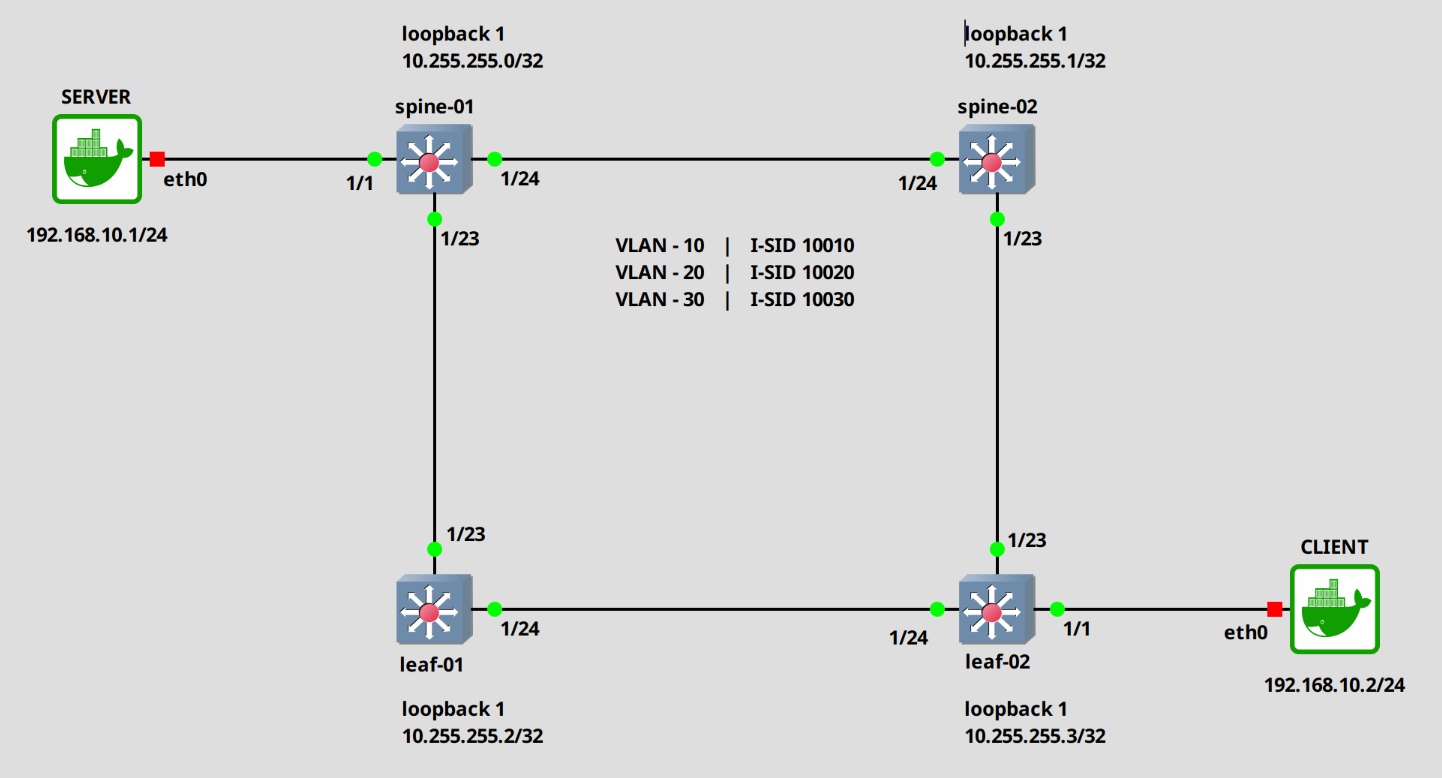
Alright. Let’s assign the ports to the I-SID 10010. In this example, I will configure them as untagged. Do the same on the “leaf-02” switch.
### Spine-01
## First disable auto-sense and enable flex-uni
spine-01(config)# interface gigabitEthernet 1/1
spine-01(config)# no auto-sense enable
spine-01(config)# flex-uni enable

## Setup the i-sid
spine-01(config)# i-sid 10010
spine-01(elan:10010)# untagged-traffic port 1/1
### Leaf-02
## First disable auto-sense and enable flex-uni
leaf-02(config)# interface gigabitEthernet 1/1
leaf-02(config)# no auto-sense enable
leaf-02(config)# flex-uni enable

## Setup the i-sid
leaf-02(config)# i-sid 10010
leaf-02(elan:10010)# untagged-traffic port 1/1
Check the configuration.
spine-01(config)# show i-sid
==============================================================================================================
                                                            Isid Info
==============================================================================================================
ISID      ISID              PORT               MLT                ORIGIN                      ISID
ID        TYPE     VLANID   INTERFACES         INTERFACES                                     NAME
--------------------------------------------------------------------------------------------------------------
10010     ELAN     10       u:1/1              -                  C  ---  -  ---  -  -  --    ISID-10010
10020     ELAN     20       -                  -                  C  ---  -  ---  -  -  --    ISID-10020
10030     ELAN     30       -                  -                  C  ---  -  ---  -  -  --    ISID-10030
16777001  ELAN     N/A      -                  -                  C  ---  -  ---  -  -  --    FAN-ISID
Now, normally, if I am correct, the systems should be able to ping each other. But, like I said in the beginning, the data plane is not fully implemented in the virtual VOSS VMs. So Fabric traffic is not forwarded.
What we can see though, is that the loopback IPs can ping each other.
## pinging leaf-02
spine-01(config)# ping 10.255.255.3
Sending ping in context grt
10.255.255.3 is alive
We are technically done, but I want to show a few more things before I finish.
First, how to transport tagged traffic.
Assign c-vid to ports (tagged traffic)
There are multiple ways, but this seems to be the preferred one.
## Disable auto-sense and enable flex-uni
spine-01(config)# interface gigabitEthernet 1/2
spine-01(config)# no auto-sense enable
spine-01(config)# flex-uni enable

## configure the customer vid
spine-01(config)# i-sid 10010
spine-01(elan:10010)# c-vid 10 port 1/2

spine-01(config)# i-sid 10020
spine-01(elan:10020)# c-vid 20 port 1/2

spine-01(config)# i-sid 10030
spine-01(elan:10030)# c-vid 30 port 1/2
Check the configuration.
spine-01(config)# show i-sid
==================================================================================================================================
                                                            Isid Info
==================================================================================================================================
ISID      ISID              PORT               MLT                ORIGIN                      ISID
ID        TYPE     VLANID   INTERFACES         INTERFACES                                     NAME
----------------------------------------------------------------------------------------------------------------------------------
10010     ELAN     10       c10:1/2            -                  C  ---  -  ---  -  -  --    ISID-10010
                            u:1/1              -
10020     ELAN     20       c20:1/2            -                  C  ---  -  ---  -  -  --    ISID-10020
10030     ELAN     30       c30:1/2            -                  C  ---  -  ---  -  -  --    ISID-10030
16777001  ELAN     N/A      -                  -                  C  ---  -  ---  -  -  --    FAN-ISID

c: customer vid    u: untagged-traffic
We can combine the untagged and tagged configuration.
spine-01(config)# i-sid 10010
spine-01(elan:10010)# untagged-taffic port 1/3
spine-01(config)# i-sid 10020
spine-01(elan:10020)# c-vid 20 port 1/3
Let’s check the configuration.
spine-01(config)# show i-sid
10010     ELAN     10       c10:1/2            -                  C  ---  -  ---  -  -  --    ISID-10010
                            u:1/1,1/3              -
10020     ELAN     20       c20:1/2,1/3            -                  C  ---  -  ---  -  -  --    ISID-10020
10030     ELAN     30       c30:1/2            -                  C  ---  -  ---  -  -  --    ISID-10030
16777001  ELAN     N/A      -                  -                  C  ---  -  ---  -  -  --    FAN-ISID

c: customer vid    u: untagged-traffic
Assign VLAN directly without I-SID
## configure port 1/5
spine-01(config)# interface gigabitEthernet 1/5
spine-01(config-if)# no auto-sense enable
spine-01(config-if)# encapsulation dot1q
spine-01(config-if)# default-vlan-id 10
spine-01(config-if)# vlan member add 20 1/5
spine-01(config-if)# vlan member add 30 1/5
Check the configuration.
spine-01(config)# show interface gigabitEthernet vlan 1/5
====================================================================================================
                                   Port Vlans
====================================================================================================
PORT             DISCARD DISCARD   DEFAULT VLAN         PORT     UNTAG    DYNAMIC UNTAG  FA/
NUM      TAGGING TAGFRAM UNTAGFRAM VLANID  IDS          TYPE     DEFVLAN  VLANS   VLANS  Flex UNI
-----------------------------------------------------------------------------------------------------------
1/5      enable  false   false     10      10,20        normal   disable  P              disable
----------------------------------------------------------------------------------------------------
And that is it.
I will go through a few more configurations in another post, but this should to it for now.
Hope this is somewhat useful.
Till next time.